On Friday afternoon, HR sends the email: the parking policy changes Monday. On Monday morning, half of second shift parks in the wrong lot. Nobody ignored the message on purpose. Most of them never had it in front of them, and the people who did read it on Friday had forgotten by the weekend.
Email is still the right place for the record: the policy, the details, the link people need later. It is a poor place for the reminder that has to be seen on the day it matters, by everyone, including people who do not sit at a computer.
That is the job digital signage does for internal communications. This guide covers what to put on the screens, how to plan and schedule it, how to reach employees without a desk, which tools to connect, and how to tell whether anyone is actually looking.
Quick Takeaway
- What it does: puts short, timely internal messages on screens where employees already pause, including people without a company inbox.
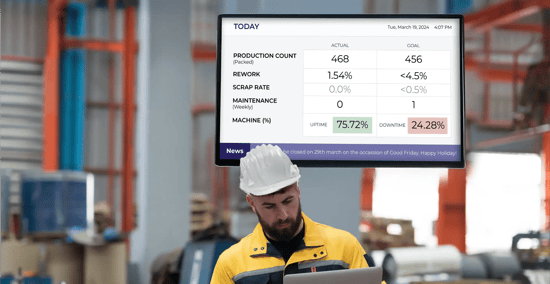
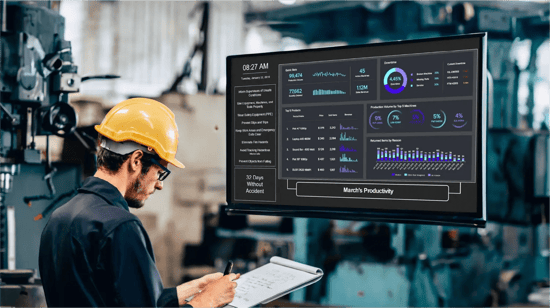
- What to show: company news, live KPIs, recognition, HR deadlines, safety reminders, alerts, and local site notices.
- How to run it: split each screen into zones, schedule by shift, and give every item an end date.
- What to connect: SharePoint, Teams, Power BI, PowerPoint, and Excel, so content updates without being rebuilt by hand.
- How to measure it: pulse questions, QR scans, response to screen-only announcements, and how fresh the content is.
What Digital Signage Does for Internal Communications
Digital signage for internal communications is the use of screens in workplaces, such as offices, plants, warehouses, and branches, to share company messages with employees where they work. Content is published from one central platform and can be targeted by site, department, floor, or shift. It complements email and the intranet rather than replacing them, and it is the main channel for employees who do not have a desk. For the broader picture, including use cases, ownership, and rollout, see our guide to corporate digital signage.
What to Show: The Internal Communications Content Mix
Screens work best for messages that are short, time-sensitive, and relevant to the people in front of them. Long documents, sensitive HR information, and anything people need to search for later belong in email or the intranet.
| Content type | Example | How often it changes | Where it comes from |
|---|---|---|---|
| Company news | Quarterly results, new customer wins, office moves | Weekly | SharePoint news or the comms team |
| Leadership messages | A 60-second video from the CEO after a town hall | Monthly or after events | Video upload or live stream |
| Live KPIs | Service levels, sales targets, production output, safety days | Continuously | Power BI, Excel, or business systems |
| Recognition | Anniversaries, promotions, team wins, customer praise | Weekly | HR and team leads |
| HR and benefits | Open enrollment deadlines, training reminders, policy changes | As deadlines approach | HR |
| Safety and policy reminders | PPE rules, fire drill dates, security reminders | Monthly rotation | EHS and facilities |
| Emergency alerts | Evacuation routes, severe weather, lockdown instructions | Only when needed | Override from the platform |
| Local site notices | Shift changes, local events, visitor schedules | Daily | Site managers |
Recognition deserves more screen time than most teams give it. It is the content employees mention most, and it costs nothing to produce. Our post on raising employee morale with digital signage covers how to do it well.
How to Plan and Schedule Internal Communications Content
The difference between a screen people check and a screen people ignore is usually the schedule, not the design. Four rules keep content current:
1. Split the screen into zones
Give each screen a fixed layout: a main zone for company messages, a side zone for live data, and a strip for local notices, time, and weather. Corporate controls the main zone; each site controls its own strip. People learn where to look, and local teams can post without touching the company message.
2. Keep loops short
Most people look at a screen for a few seconds at a time. A rotation of six to eight slides, each shown for eight to ten seconds, means someone walking past twice sees most of it. If the loop is longer than a minute, cut it.
3. Schedule by shift, not just by day
Night shift does not need the lunch menu or a reminder about a 2 p.m. town hall. Dayparting lets the same screen show different content to different shifts, so every crew sees messages that apply to them.
4. Give every item an end date
Nothing should go on a screen without an expiry date. Stale content is the fastest way to teach employees that the screens are not worth reading. If something should run indefinitely, it probably belongs on a poster.
Want to see how central control and local zones work on one screen? Get a walkthrough of L Squared Hub.
Talk to L SquaredReaching Employees Without a Desk
For production, warehouse, retail, and field teams, screens are often the only company channel they see during a shift. Three practices matter most for these groups. Place screens where people pause, such as breakrooms, time clocks, and entrances, not where they walk fast. Use content in the languages your teams actually speak, scheduled by site. And keep messages to one idea per slide, readable from across the room. We cover this audience in depth in our guide to internal communication for deskless workers.
Connect the Tools You Already Use
The most common reason internal communications screens go stale is that someone has to rebuild content by hand. Connecting the screens to existing tools removes that step:
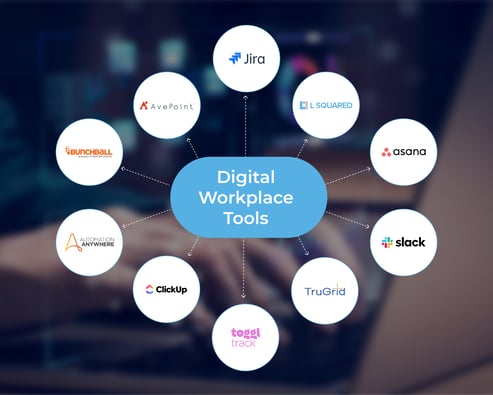
- SharePoint and Microsoft 365: publish news and announcements once and show them on screens automatically.
- Microsoft Teams and Zoom: stream town halls and all-hands meetings live to screens on every floor and site.
- Power BI and Excel: show live dashboards and targets without exporting screenshots.
- PowerPoint and Canva: turn existing slides and designs into screen content without a designer.
- Google Workspace: pull in Slides and Sheets for teams that work in Google.
L Squared connects to all of these, with over 100 widget integrations in total. Its Content on Demand feature also lets employees browse training and company videos in a Netflix-style library on breakroom screens. For hardware, services, and plans, see our employee communication solution.
Who Approves What
Internal communications or HR should own the calendar and the main zone. Site managers should own their local strip. IT should own the platform, single sign-on, and device security. Role-based access control makes this practical: a site manager can publish a shift notice in minutes without being able to change the company message. Our enterprise communications playbook goes further on governance for large organizations.
How to Measure Whether It Works
Screens do not produce open rates, so measurement takes a little design. These signals are practical and cheap to collect:
- A pulse question: add "Where did you hear about this?" to your next employee survey, with screens as an option.
- QR codes: put a QR code on screen-only announcements, such as a benefits sign-up, and count the scans by site.
- Screen-only tests: announce a small event or giveaway only on screens and track how many people respond.
- Fewer repeat questions: watch whether HR and IT tickets drop for topics you promote on screens.
- Content freshness: track the share of items updated in the last seven days. Below half, attention follows.
- Screen uptime: use device monitoring to confirm every screen is actually on and showing current content.
Frequently Asked Questions
What should internal communications teams put on digital signage?
Internal communications teams should put short, time-sensitive messages on digital signage: company news, leadership updates, live KPIs, recognition, HR deadlines, safety reminders, emergency alerts, and local site notices. Long documents, confidential HR information, and anything employees need to look up later belong in email or the intranet.
How often should internal communications screens be updated?
Internal communications screens should have something new at least weekly, and live data should update continuously. Every item should carry an end date so it drops off automatically. When most content on a screen is more than a week old, employees learn to stop looking.
Is digital signage better than email for internal communications?
Digital signage is not better than email; it does a different job. Email is best for detail and records that people need to find again. Digital signage is best for reminders and updates that must be seen on the day they matter, especially by employees who do not sit at a computer.
How do you reach deskless employees with internal communications?
To reach deskless employees, place screens where they pause during a shift, such as breakrooms, time clocks, and entrances, and schedule content by shift and site. Keep each slide to one idea, readable from a distance, and publish in the languages your teams speak.
Can internal communications screens show content in multiple languages?
Yes. Internal communications screens can show different language versions of the same message, scheduled by site, or rotate languages on the same screen. Central publishing keeps the message consistent while each location sees the version its employees read.
How do you measure digital signage for internal communications?
Measure digital signage for internal communications with practical signals: a survey question about where employees heard news, QR code scans on screen-only announcements, responses to events promoted only on screens, fewer repeat HR and IT questions, content freshness, and screen uptime from device monitoring.
The Bottom Line
Digital signage gives internal communications a channel that does not depend on someone opening a message. It works when the content is short, current, and scheduled for the people in front of the screen, and when it is connected to the tools your team already uses. Plan the zones, put an end date on everything, and measure what people actually see.
L Squared includes 24/7/365 live support agents on every plan, so the screens keep working on every shift.
Talk to L SquaredMake it Visible.